
这是随手记得,很杂,在做的过程中一直改,还未整理,仅供参考
0.参考资料
| [Draw Call Cost Analysis for Meta Quest | Oculus Developers](https://developer.oculus.com/documentation/unity/po-draw-call-analysis/) |
| [Testing and Performance Analysis | Oculus Developers](https://developer.oculus.com/documentation/unity/unity-perf/) |
| [Guidelines for VR Performance Optimization | Oculus Developers](https://developer.oculus.com/documentation/native/pc/dg-performance-guidelines/) |
| [使用虚幻引擎Android Vulkan移动渲染器 | 虚幻引擎5.3文档 (unrealengine.com)](https://docs.unrealengine.com/5.3/zh-CN/using-the-android-vulkan-mobile-renderer-in-unreal-engine/) |
| [虚幻引擎中的VR性能测试 | 虚幻引擎5.3文档 (unrealengine.com)](https://docs.unrealengine.com/5.3/zh-CN/vr-performance-testing-in-unreal-engine/) |
| [虚幻引擎XR性能功能 | 虚幻引擎5.3文档 (unrealengine.com)](https://docs.unrealengine.com/5.3/zh-CN/xr-performance-features-in-unreal-engine/#可变速率着色和固定注视点渲染) |
| [在虚幻引擎中为Oculus项目实现自动实例化 | 虚幻引擎5.3文档 (unrealengine.com)](https://docs.unrealengine.com/5.3/zh-CN/auto-instancing-on-oculus-in-unreal-engine/) |
1.前置工作,首先切换到Vulkan渲染预览模式以便更好匹配打包结果。
a.Allow Vulkan
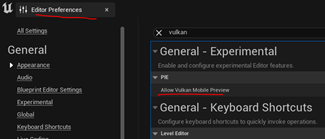
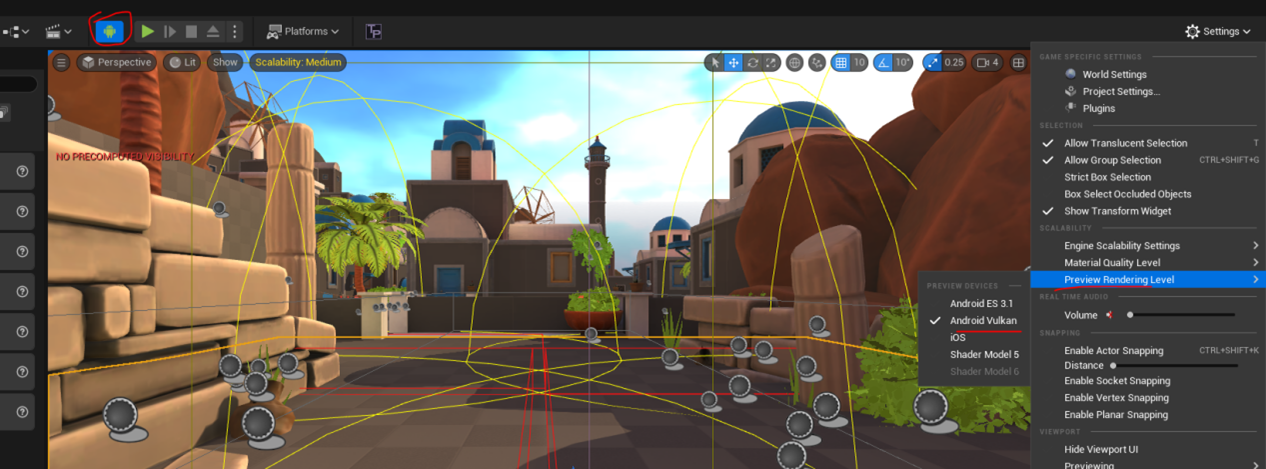
UE5支持的Vulkan设备
以下设备除了支持非Vulkan配置文件,还支持Vulkan特定的配置文件。
Adreno 6xx
Mali G72
Mali G76
Mali G77
PowerVR GM9xxx
三星 XClipse 系列
如果你的设备使用Android 9或更高版本的Android系统,并且你的项目启用了Vulkan功能级别,它将使用这些GPU的设备配置文件的Vulkan功能版本。
Oculus硬件配置
VLNQA00379, Oculus (Quest 2), Android 10, CPU: Snapdragon XR2, GPU: Adreno (TM) 650
2.性能调优的三个主要手段
2.1场景优化方面的流程
Texture纹理优化(分辨率大小控制在小道具256,大的建筑1024、极个别2048、格式DXT1、Alpha通道)
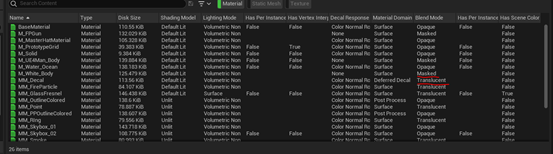
Material材质优化(避免透明材质、减少Mask和Additive材质)、使用材质实例
Mesh静态网格体优化(减面、整个场景100万面以内、视角内控制在10万以内最好)
纹理列表、使用texture resizing工具批量处理大小。
小道具256,大的建筑1024、极个别2048
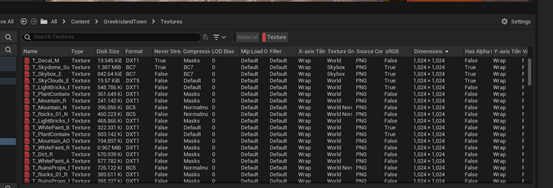
材质列表、剔除或更换透明材质、关注Mask(烟), additive(树叶)材质
模型列表、使用BatchLOD批量化创建LOD.
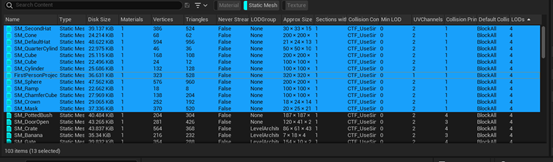
新的参数是
0 percent 1 size 1
1 percent 0.8 size 0.5
2 percent 0.5 size 0.25
3 percent 0.3 size 0.125
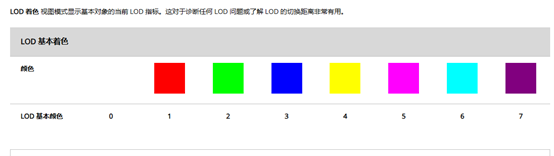
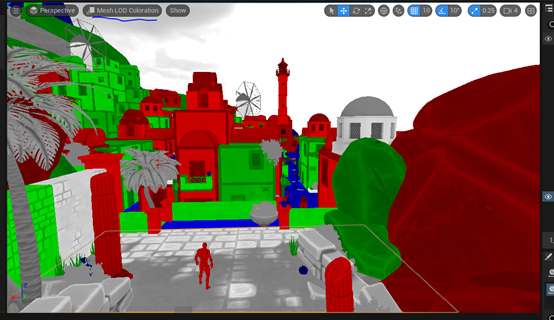
LOD视图
Tips:
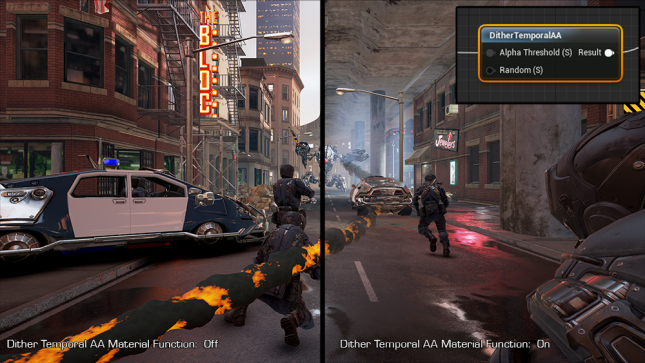
VR和透明度: 在3D图形中,渲染透明度的开销极其昂贵,因为一般来说,透明效果每帧都需要重新计算一下,以检查是否有所变化。由于要重新评估,在VR中渲染透明度的开销变得过于昂贵,得不偿失。不过为了避免这个问题,你可以使用 DitherTemporalAA 材质函数。该材质函数可以让材质看似使用了透明效果,还能避免自排序等常见的透明度问题。 在材质中,修改translucent为masked,添加Dither Temporal AA 节点,与OpacityMask连接。这种方法的阴影和效果都较好,推荐使用
2.2渲染设置方面
Cpu剔除、CPU Drawcall、GPU渲染
Occlusion culling遮罩剔除。默认剔除顺序为距离剔除(手动开启)、视锥剔除(默认开启)、预计算可视性剔除(手动开启)、遮罩剔除(默认开启)。
标注以下LOD-0作为遮罩剔除默认选项修改的地方
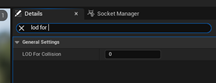
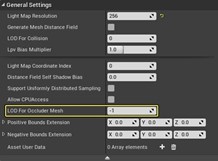
Drawcall里面主要是不同mesh的数量material的数量
Drawcall挑选的元数据依托下面的设置:
LOD setting细节层级-Auto LOD默认开启
Mipmap setting贴图层级-Texture streaming默认开启
Mipmap Bias标注以下LOD0作为遮罩剔除默认选项修改的地方
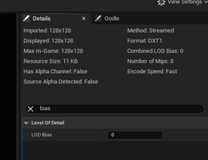
Mesh的Batch合批(ISM,HISM-推荐),需要手动设置。
备注:还有一个选项值得继续研究(到底支不支持自动合批)
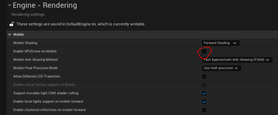
HLOD集中化一个区域的物体,需要手动设置
2.3 Project setting渲染设置
A.在Project setting里面使用OculusVR plugin里面的launch oculus performance windows进行全局预先设置
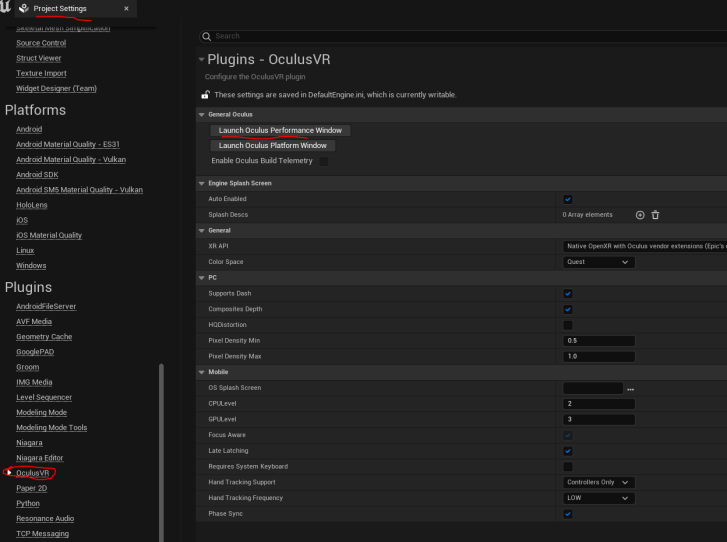
另外,需要手工整体改进一遍,以便进一步降低渲染的性能消耗
Target hardware = mobile scalable
Rendering部分整体修改一遍
Anti Alias抗锯齿全部关掉
Foward render前向渲染开启 30%
VR
Foveation两个选项都开启并提到最高30%
Instanced stereo关闭-因为这个仅限PC VR使用
Mobile HDR关闭-耗能高
Mobile Multiview开启,等同于移动版本的instanced stereo 30%
Round robin Occlusion开启,双眼轮询剔除算法 20%
Postprocess耗能大的全部关闭如
bloom/AO/Auto exposure/Motion Blur/Lens Flare
Experimental
Mesh streaming开启,不可见物体不渲染,效果未知?
Tips:
Oculus CPU/GPU Level和Utility percentage
1、2、3、4对应不同的使用频率,4最高(性能最好、耗能最高)
使用率是该时钟频率下的使用率
默认是自适应,可以在SDK中锁死,如下图
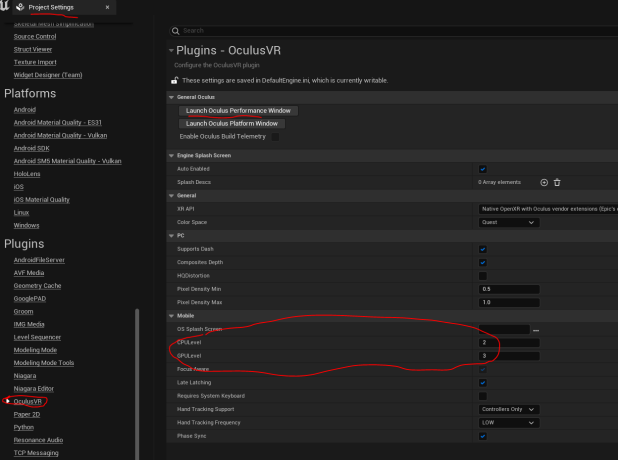
Tips:
Fixed foveation前向注视渲染有可能可以进行更凶猛的设置,可以参考下面这个github中的包
Releases · tappi287/openvr_fsr_app (github.com)
2.4 SDK自带加成
Oculus Time warp、Space warp + Phase Sync(配合条件)
It gives the rendering pipeline dynamic control of frame timing to reduce positional latency and works in conjunction with Asynchronous Time Warp, another Oculus-specific latency reduction technology. Phase Sync helps limit positional latency by giving the application just enough time for each frame to render, and no more.
Time warp 默认开启
Space warp(非常值得期待的double帧率技术)
使用AMD FSR技术
| [为虚幻引擎使用移动平台FSR | 虚幻引擎5.3文档 (unrealengine.com)](https://docs.unrealengine.com/5.3/zh-CN/using-mobile-fsr-for-unreal-engine/) |
| [设置设备描述 | 虚幻引擎5.3文档 (unrealengine.com)](https://docs.unrealengine.com/5.3/zh-CN/setting-up-device-profiles-in-unreal-engine/) |
| [使用虚幻引擎中的移动端预览器 | 虚幻引擎5.3文档 (unrealengine.com)](https://docs.unrealengine.com/5.3/zh-CN/using-the-mobile-previewer-in-unreal-engine/) |
3. PIE模式下的性能监控
Drawcall
Reducing Draw Calls in Unreal! UE4/UE5/Blender\ - YouTube
很好的指导性文件
| [Virtual Reality Best Practices | Unreal Engine Documentation](https://docs.unrealengine.com/4.26/en-US/SharingAndReleasing/XRDevelopment/VR/DevelopVR/ContentSetup/) |
| [虚幻引擎Stat命令 | 虚幻引擎5.3文档 (unrealengine.com)](https://docs.unrealengine.com/5.3/zh-CN/stat-commands-in-unreal-engine/) |
t.MaxFps 999
stat fps帧率
stat unit unitgraph纵览全局 (game/draw/gpu/RHI)
Stat game
Stat initviews遮罩剔除
Stat RHI 整体drawcall
Stat sceneRendering 场景drawcall stat slate 图形界面的UI drawcall (number batchs是绘制数量)
Stat gpu
Profile gpu
Stat engine显示一般渲染状态,例如帧时间,以及正在渲染的三角形数量的计数器
Stat none
r.Streaming.PoolSize 1 用于监视gpu ram并可以重新设置大小
4.Oculus performance matrix 运行时的性能检测
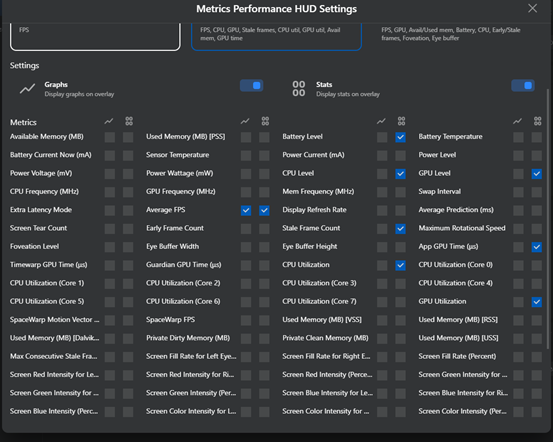
遗留关键问题
-
为什么没有剔除-应该是都剔除了,但是报表中包括UI所以引起了混淆
-
为什么LOD没有生效,视图中的LOD到底是怎么计算- done
-
FPS如何设定为90帧或更高
| [Oculus Quest: Set Display Refresh Rates: Unreal | Oculus Developers](https://developer.oculus.com/documentation/unreal/unreal-change-display-refresh-rate/) |
-
预计算空间如何生效以及效果
-
Fixed Foveated rendering如何生效以及效果
-
Auto instancing自动实例化如何生效以及效果
-
AMD FSR如何生效以及效果、ASW空间扭曲如何生效以及效果
-
如何使用unreal insight或者oculus MQDH报表深入分析某块细节
4.预计算空间如何生效以及效果
UE4在场景中使用预计算可视性(PrecomputedVisibility)_预计算可视性体积-CSDN博客
| [虚幻引擎中的预计算可视性体积 | 虚幻引擎5.3文档 (unrealengine.com)](https://docs.unrealengine.com/5.3/zh-CN/precomputed-visibility-volumes-in-unreal-engine/) |
A.预计算可视性体积的大小是整个要计算可视性空间的大小(手工推拽决定),体积越大占用内存越大。
B.在world setting里面的visibility cell size是分割空间的体积大小,相当于很多小的块。
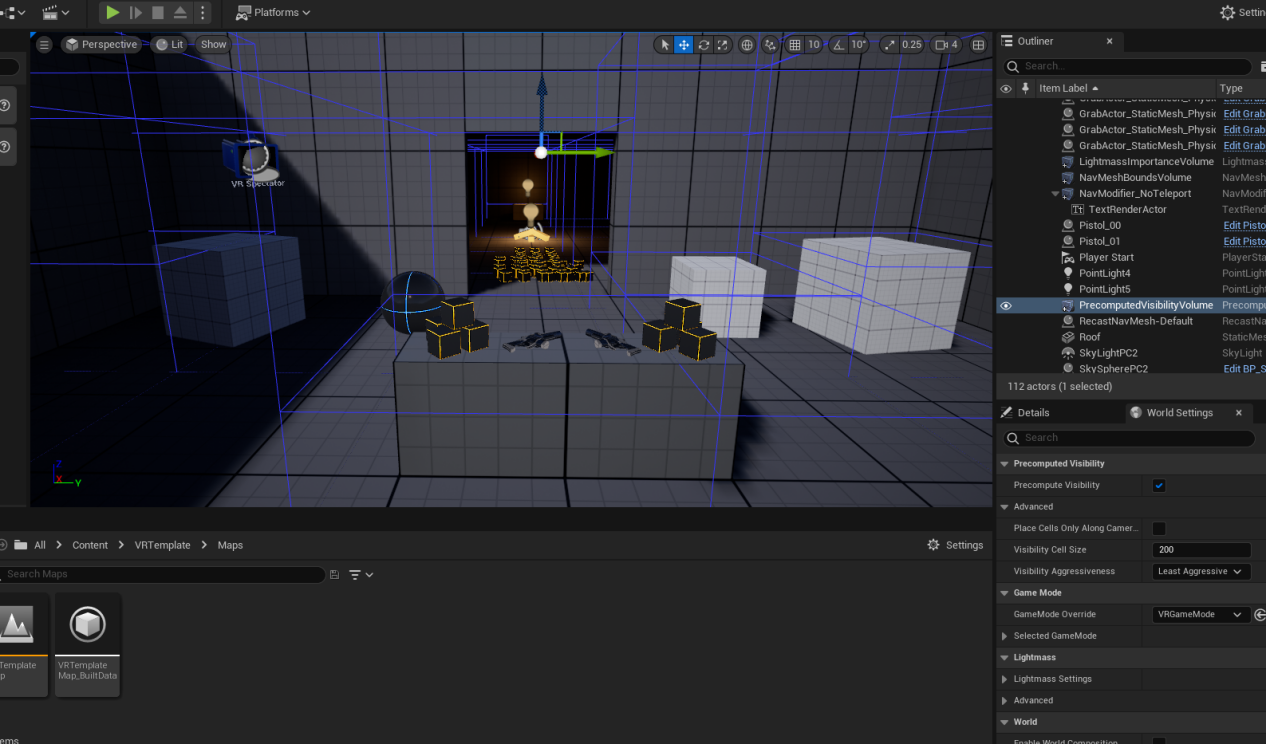
stat initviews 查看预计算可视性在关卡中的效率
stat memory 了解为游戏分配的内存使用,更具体地说,是了解预计算可视性。
Show->virtualize->precomputevisibility可以看到这些蓝框框
Tips: 虽然我们通过预计算可视性确实减少了一些面数、但是同时这个运算也增加了一些运算量0.8~1.2ms
所以目前看来是得不偿失的,不建议开启。
5.Fixed Foveated rendering如何生效以及效果
Meta XR Plugin in Code Plugins - UE Marketplace (unrealengine.com) 使用metaxr替换oculusvr sdk
| [Unreal Engine | Oculus Developers](https://developer.oculus.com/documentation/unreal/unreal-engine/) |
| [Creating Your First Meta Quest VR App in Unreal Engine: Unreal | Oculus Developers](https://developer.oculus.com/documentation/unreal/unreal-quick-start-guide-quest/) 安装配置手册 |
关键流程是
使用5.2+MetaXR SDK(替换OpenVR SDK),然后在rendering setting中和metaxr setting中同样开启FFR.
有不错的提升效果,GPU消耗上有10~20%节约
特殊注意:安装MetaXR插件后建议要在Meta xr platform windows里面重新选择一下quest人。
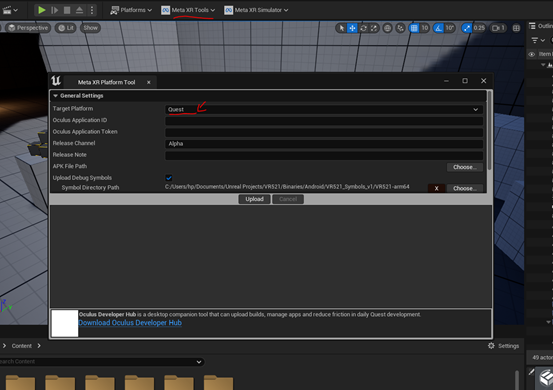
附赠一个dynamic resolution动态分辨率,在metaxr里面开启后会有性能节约。
6.Auto instancing自动实例化如何生效以及效果
| [Auto Instancing on Oculus in Unreal Engine | Unreal Engine 5.3 Documentation](https://docs.unrealengine.com/5.3/en-US/auto-instancing-on-oculus-in-unreal-engine/) |
Unity 和 UE 合批方法概述 - 知乎 (zhihu.com)
Unreal 5 实现使用GPU Instancing批量渲染相同的物体-CSDN博客
可以注意到,UE4中的实例化合批又分为两种类型
InstanceStaticMeshComponent和HierarchicalInstanceStaticMeshComponent。
对于InstanceStaticMeshComponent,相同模型和材质的Actor会被合为一组,每一组各个物体的Transform信息会被放入一个数组;提交数据时,将Transform数组、模型数据、材质数据等等一并提交,由于材质都完全相同,对这些物体都只需要设置一次渲染状态,绘制时对这些物体也只需要发起一次DrawCall。
所以对于UE4的实例化合批,既减少了“设置GPU渲染状态”的次数,也减少了“DrawCall”。
对于HierarchicalInstanceStaticMeshComponent,则在InstanceStaticMeshComponent的基础上更进一步,增加了对LOD的支持,让每个实例可以显示不同层次的LOD。
其内部实现思路是:先进行LOD层次的计算,然后在对同一层LOD的示例进行实例化合批。这是一个实时计算、动态的过程,会比InstanceStaticMeshComponent更费CPU。但是这也是在性能还行的前提下,进行大面积带LOD重复物体渲染的唯一方法。
开启方法:
在config engine.ini文件里面添加这三段
r.Mobile.SupportGPUScene=1(手动开启)
r.MeshDrawCommands.DynamicInstancing=1(默认开启,理论上不用再添加)
r.MeshDrawCommands.UseCachedCommands=1(默认开启,理论上不用再添加)
在PIE界面
进行Batch,选择HISM,并注意勾选replace.
X17验证了合批,之前是950多,之后是650多,CPU在drawcall性能上有10%~20%的节约。整个场景都可以跑到60帧,好的地方72帧,且CPU、GPU可以维持在2/3~3/4。
7.AMD FSR如何生效以及效果
| [为虚幻引擎使用移动平台FSR | 虚幻引擎5.3文档 (unrealengine.com)](https://docs.unrealengine.com/5.3/zh-CN/using-mobile-fsr-for-unreal-engine/) |
| [设置设备描述 | 虚幻引擎5.3文档 (unrealengine.com)](https://docs.unrealengine.com/5.3/zh-CN/setting-up-device-profiles-in-unreal-engine/) |
1.0 plugin->UE4.27
2.0 plugin->UE4.26~5.2版本
AMD FidelityFX Super Resolution 2 (FSR 2) - AMD GPUOpen 介绍
How to use the AMD FidelityFX Super Resolution 2 (FSR 2) Unreal Engine plugin - AMD GPUOpen 使用方法
https://gpuopen.com/download-Unreal-Engine-FSR2-plugin/ 插件下载
实际测试效果,FSR对CPU有比较大的消耗,如果CPU还有足够富裕的话可以实现一定的提速效果,如果CPU已经跑满的话,开启FSR会导致整体性能进一步下降。
X18验证了AMD FSR. 整个场景相对于x17降低到53~50帧左右,CPU和GPU双升到4
7.5 Oculus ASW如何生效以及效果
VR/AR/XR延迟:MTP ASW PTW ATW Frame Sync LDC CDC Latency相关概念综述 - 知乎 (zhihu.com) 技术原理介绍

为了安装UE Oculus版本引擎,需要VS2022中添加Unreal engine和Unreal Android IDE两个模块。
下载UE Oculus原生包
Oculus-VR/UnrealEngine: Unreal Engine source code with latest Oculus integration (github.com) 下载UE Oculus版本引擎
安装UE Oculus版本关键4步操作
-
run Setup.bat. This will download binary content for the engine, install prerequisites, and set up Unreal file associations.
-
Run GenerateProjectFiles.bat to create project files for the engine.
-
Load the project into Visual Studio by double-clicking the new UE5.sln file.
-
Set your solution configuration to Development Editor and your solution platform to Win64, then right click the UE5 target and select Build. It may take anywhere between 10 and 40 minutes to finish compiling, depending on your system specs.
开启ASW的方式
| [Application SpaceWarp Developer Guide: Unreal | Oculus Developers](https://developer.oculus.com/documentation/unreal/unreal-asw/) |
-
Prerequisites: AppSW under UE4 requires Mobile Multiview + OpenXR Ovrplugin + Vulkan must be enabled.
-
Mobile Multi-ViewOpenXR OVRPluginVulkan
Enable AppSW support by checking the box under Engine - Rendering. Application SpaceWarp
- Steps 1 and 2 will make your app capable of enabling AppSW in any frame of the game. The feature itself is controlled by the console variable r.Mobile.Oculus.SpaceWarp.Enable. Like all the other console variables, you can enable it in the middle of the game play by setting it in your C++ code or by using Blueprints. The following is an example of how to enable AppSW when a user is holding the right controller trigger and disabling it when releasing the trigger. Blueprint example
If you prefer the app to run with AppSW from the start, add it into the DefaultEngine.ini file as such:
[/Script/Engine.RendererSettings]
r.Mobile.Oculus.SpaceWarp.Enable=True
测试发现,默认quest2只会开启60、72、80帧率,如果需要更高帧率,需要按照下面的方法设定
在adb命令里输入以下三条代码,输入一条运行一次,一共三条按顺序输入,都输完后关闭头显屏幕再开启即可,重启头显会使全局120hz失效
adb shell settings put global 120hz_global 1
adb shell settings put global 120hzglobal 1
Adb shell setprop debug.oculus.refreshRate 120
在头显里面切换帧率的蓝图节点如下
| [Unreal Engine | Oculus Developers](https://developer.oculus.com/documentation/unreal/unreal-engine/) |
这个比较简单,就是一个get avaliable display frequencies 和set display frequency.
最后一篇帖子: